
 ### 🔧 Configuration Options
The config options might be unavailable depending on the bot you're using. For built-in preset bots, custom SL and TP for example may not be editable because they are managed for you.
| **Field** | **Description** |
| --------------------------- | --------------------------------------------------------------------------------------------------------------------------- |
| **API Key Nickname** | Select which API key and exchange the bot will use (e.g., BloFin, Bitget). |
| **Trading Type** | Defines the market type used by the bot. Typically set to **Futures** for leveraged trading. |
| **Margin Mode** | Determines how margin is managed. **Isolated** limits risk to the position, while **Cross** shares margin across positions. |
| **Pair(s)** | One or more trading pairs assigned to the bot (e.g., AVNTUSDT). |
| **Bot Name** | Custom name used to identify this bot instance. |
| **Amount per Trade** | Determines position size. Can be a **fixed amount** or a **percentage of account balance**. |
| **Trade Size Percentage** | Slider used when percentage-based sizing is selected, defining how much of the account is allocated per trade. |
| **Use TradingView Amounts** | When enabled, the bot uses position sizes sent directly from TradingView alerts. |
| **Stop Loss** | Toggle to enable automatic stop-loss protection for trades. |
| **Take Profit** | Toggle to enable automatic take-profit targets. |
| **Leverage** | Sets leverage multiplier for trades (within the allowed range). |
| **Allow Layered Entries** | When enabled, allows the bot to scale into positions using multiple entries. |
| **Subscription Status** | Indicates whether the bot is currently **Active** or **Inactive**. |
{% hint style="warning" %}
For bots to function, **API keys must have trading permissions enabled**, and **withdrawals disabled** for security.
{% endhint %}
***
### 💾 Save Configuration
{% hint style="info" %}
When you're done making changes, click **Save Changes** (orange button) to apply your edits.
Your bot will now operate under the new configuration — or stay paused if you left it inactive.
{% endhint %}
***
## 🔁 Pausing & Resuming Bots
You can pause a bot in two ways:
{% stepper %}
{% step %}
### From the Dashboard
* Use the **toggle switch** next to each bot card to quickly pause/resume.
{% endstep %}
{% step %}
### From the Edit Panel
* Scroll to the **Bot Status** dropdown.
* Choose `Inactive` or `Active`.
{% endstep %}
{% endstepper %}
### 🔧 Configuration Options
The config options might be unavailable depending on the bot you're using. For built-in preset bots, custom SL and TP for example may not be editable because they are managed for you.
| **Field** | **Description** |
| --------------------------- | --------------------------------------------------------------------------------------------------------------------------- |
| **API Key Nickname** | Select which API key and exchange the bot will use (e.g., BloFin, Bitget). |
| **Trading Type** | Defines the market type used by the bot. Typically set to **Futures** for leveraged trading. |
| **Margin Mode** | Determines how margin is managed. **Isolated** limits risk to the position, while **Cross** shares margin across positions. |
| **Pair(s)** | One or more trading pairs assigned to the bot (e.g., AVNTUSDT). |
| **Bot Name** | Custom name used to identify this bot instance. |
| **Amount per Trade** | Determines position size. Can be a **fixed amount** or a **percentage of account balance**. |
| **Trade Size Percentage** | Slider used when percentage-based sizing is selected, defining how much of the account is allocated per trade. |
| **Use TradingView Amounts** | When enabled, the bot uses position sizes sent directly from TradingView alerts. |
| **Stop Loss** | Toggle to enable automatic stop-loss protection for trades. |
| **Take Profit** | Toggle to enable automatic take-profit targets. |
| **Leverage** | Sets leverage multiplier for trades (within the allowed range). |
| **Allow Layered Entries** | When enabled, allows the bot to scale into positions using multiple entries. |
| **Subscription Status** | Indicates whether the bot is currently **Active** or **Inactive**. |
{% hint style="warning" %}
For bots to function, **API keys must have trading permissions enabled**, and **withdrawals disabled** for security.
{% endhint %}
***
### 💾 Save Configuration
{% hint style="info" %}
When you're done making changes, click **Save Changes** (orange button) to apply your edits.
Your bot will now operate under the new configuration — or stay paused if you left it inactive.
{% endhint %}
***
## 🔁 Pausing & Resuming Bots
You can pause a bot in two ways:
{% stepper %}
{% step %}
### From the Dashboard
* Use the **toggle switch** next to each bot card to quickly pause/resume.
{% endstep %}
{% step %}
### From the Edit Panel
* Scroll to the **Bot Status** dropdown.
* Choose `Inactive` or `Active`.
{% endstep %}
{% endstepper %}
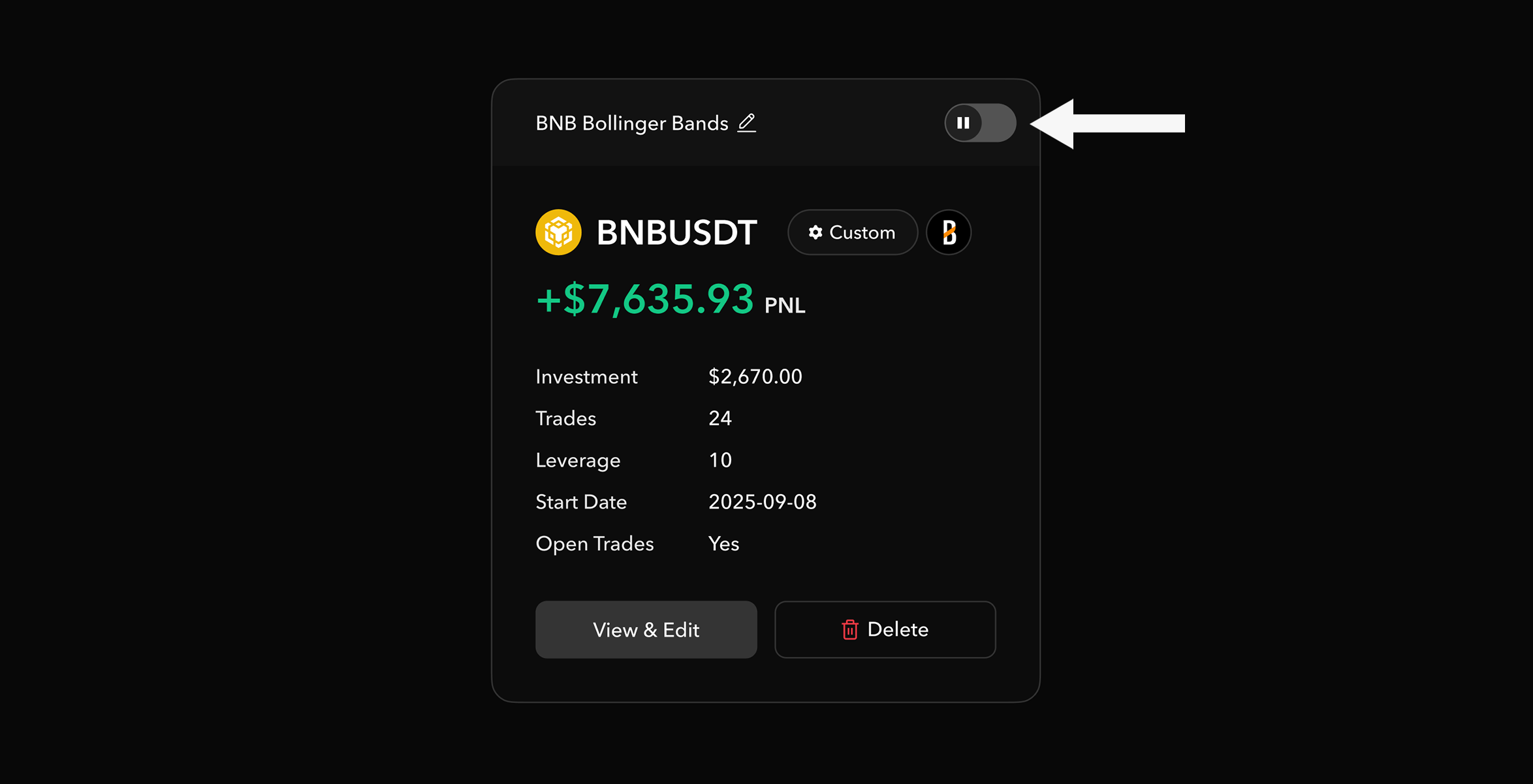
Editing via Dashboard toggle